Backing Up a Kubernetes to S3 with Velero
A quick test to see how fast a Kubernetes namespace can be recovered after deletion. Using Velero with an S3 backend on a K3s cluster, a demo application namespace was backed up, deleted, and restored. The restore completed successfully, recreating the Deployment, Pod, and Service within seconds.

I wanted to sanity-check something simple: if a namespace disappears from a cluster, how quickly can I bring it back? This wasn’t meant to be a full disaster recovery experiment or a production-grade benchmark. The goal was just to validate that a namespace with a running application could be backed up, deleted, and restored without much friction.
There are several Kubernetes backup tools available. Some are quite feature-heavy and designed for enterprise environments. One example is Kasten K10, which is powerful but follows a pricing model. For this quick test I preferred something lightweight and open source, so I used Velero. Velero’s design is relatively straightforward: Kubernetes resource manifests are backed up, volume data can optionally be snapshot through the storage provider, and everything ends up stored in object storage. In this test the object storage backend was Amazon S3, and the cluster itself was a small K3s environment running v1.33.5+k3s1. I intentionally skipped PersistentVolumes for this run because I only wanted to confirm the mechanics of backing up and restoring namespace resources first.
Installing the Velero CLI
Velero distributes a client binary via GitHub releases. I downloaded the Linux tarball for version v1.18.0.
wget https://github.com/vmware-tanzu/velero/releases/download/v1.18.0/velero-v1.18.0-linux-amd64.tar.gz
Download result:
Saving to: ‘velero-v1.18.0-linux-amd64.tar.gz’

velero-v1.18.0-linux-amd64.tar.gz    100% 52.71M 27.0MB/s in 2.0s
Then extract the archive.
tar -xvf velero-v1.18.0-linux-amd64.tar.gz
Extraction produced the following files.
velero-v1.18.0-linux-amd64/LICENSE
velero-v1.18.0-linux-amd64/examples/minio/00-minio-deployment.yaml
velero-v1.18.0-linux-amd64/examples/nginx-app/README.md
velero-v1.18.0-linux-amd64/examples/nginx-app/base.yaml
velero-v1.18.0-linux-amd64/examples/nginx-app/with-pv.yaml
velero-v1.18.0-linux-amd64/velero
After that I moved the binary into the system path so it can be used anywhere.
mv velero-v1.18.0-linux-amd64/velero /usr/local/bin/
To confirm the client installation:
velero version
Output:
Client:
        Version: v1.18.0
        Git commit: 6adcf06b5b0e6fb93998d3e101e2cbdc134fa3c3
At this stage only the CLI exists locally. Nothing has been installed in Kubernetes yet.
Preparing Object Storage
Velero requires an object storage location to store backup metadata. In this case I used an S3 bucket.
BUCKET=s3-anantafatur-velero
REGION=ap-southeast-3

aws s3api create-bucket \
    --bucket $BUCKET \
    --region $REGION \
    --create-bucket-configuration LocationConstraint=$REGION
The bucket itself is just a storage target for backup artifacts. Velero will later store compressed archives containing Kubernetes manifests and metadata.
IAM Setup
Because Velero interacts with S3 and potentially EC2 snapshots, it needs an IAM identity with the appropriate permissions. I created a dedicated IAM user named velero.
aws iam create-user --user-name velero
Result:
{
 "User": {
  "UserName": "velero",
  "Arn": "arn:aws:iam::XXXXXXXXXXXX:user/velero"
 }
}
Next I created a policy granting permissions for EC2 snapshot operations and S3 object access within the Velero bucket.
cat > velero-policy.json <<EOF
{
 "Version": "2012-10-17",
 "Statement": [
  {
   "Effect": "Allow",
   "Action": [
    "ec2:DescribeVolumes",
    "ec2:DescribeSnapshots",
    "ec2:CreateTags",
    "ec2:CreateVolume",
    "ec2:CreateSnapshot",
    "ec2:DeleteSnapshot"
   ],
   "Resource": "*"
  },
  {
   "Effect": "Allow",
   "Action": [
    "s3:GetObject",
    "s3:DeleteObject",
    "s3:PutObject",
    "s3:AbortMultipartUpload",
    "s3:ListMultipartUploadParts"
   ],
   "Resource": [
    "arn:aws:s3:::${BUCKET}/*"
   ]
  },
  {
   "Effect": "Allow",
   "Action": [
    "s3:ListBucket"
   ],
   "Resource": [
    "arn:aws:s3:::${BUCKET}"
   ]
  }
 ]
}
EOF
Then attach the policy to the IAM user.
aws iam put-user-policy \
  --user-name velero \
  --policy-name velero \
  --policy-document file://velero-policy.json
Next I generated an access key for the user.
aws iam create-access-key --user-name velero
Example output:
AccessKeyId: <AWS_ACCESS_KEY_ID>
SecretAccessKey: <AWS_SECRET_ACCESS_KEY>
Velero expects these credentials in a small configuration file.
cat <<EOF > credentials-velero
[default]
aws_access_key_id=<AWS_ACCESS_KEY_ID>
aws_secret_access_key=<AWS_SECRET_ACCESS_KEY>
EOF
Installing Velero in the Cluster
With the CLI and credentials ready, Velero can install its controller components into Kubernetes.
velero install \
  --provider aws \
  --plugins velero/velero-plugin-for-aws:v1.14.0 \
  --bucket "$BUCKET" \
  --secret-file ./credentials-velero \
  --backup-location-config region="$REGION" \
  --snapshot-location-config region="$REGION"
The installer creates several CustomResourceDefinitions and deploys the Velero controller.
CustomResourceDefinition/backups.velero.io: created
CustomResourceDefinition/restores.velero.io: created
Namespace/velero: created
ServiceAccount/velero: created
Secret/cloud-credentials: created
Deployment/velero: created
Once installation finished, I checked that the deployment was running.
kubectl get all -n velero
Result:
pod/velero-57d646d4f-dbqpj 1/1 Running
deployment.apps/velero
replicaset.apps/velero
At this point the Velero controller was active in the cluster.
Deploying a Test Application
The cluster didn’t have any workloads running yet, so I deployed a small demo application to serve as backup material. First I created a namespace.
kubectl create ns velero-demo
Then I deployed a simple JavaScript game application.
kubectl apply -f https://raw.githubusercontent.com/mimqupspy/k3s-yaml/refs/heads/main/js-game-app.yml -n velero-demo
Checking the resources confirmed that the application was running.
kubectl get all -n velero-demo
Result:
pod/js-game-app-995486fc9-zrzcb   1/1 Running
service/js-game-app-service
deployment.apps/js-game-app
For easier testing I changed the service type to NodePort so the application could be accessed externally.
kubectl patch svc js-game-app-service -p '{"spec":{"type":"NodePort"}}' -n velero-demo
The service then looked like this:
service/js-game-app-service NodePort 3000:31361/TCP
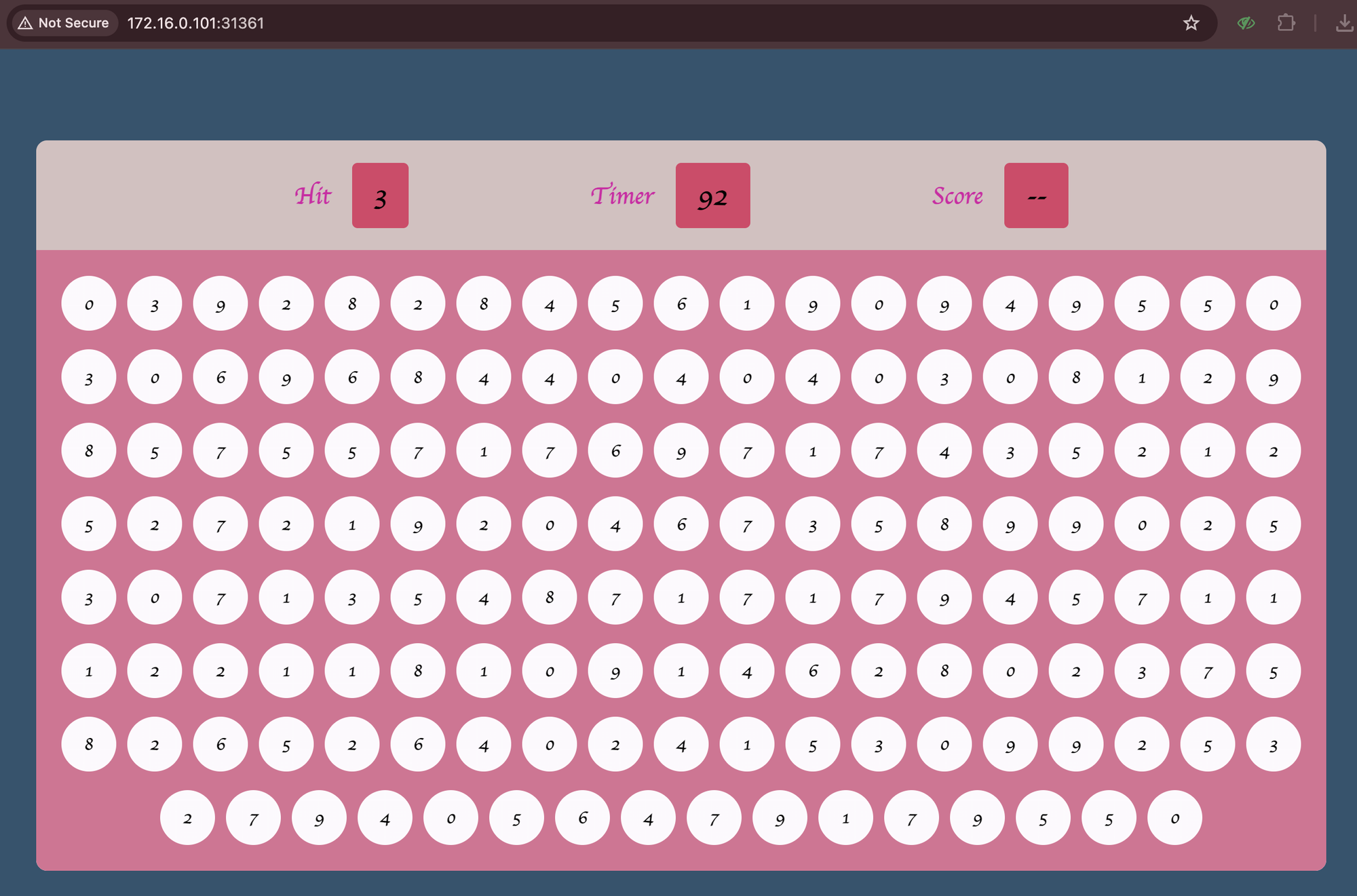
At this point the application was running normally in the namespace.
Creating the Backup
With a working namespace in place, I triggered a Velero backup.
velero backup create velero-demo-backup --include-namespaces velero-demo
Velero immediately accepted the request.
Backup request "velero-demo-backup" submitted successfully.
Checking the backup status showed that the operation finished quickly.
velero backup describe velero-demo-backup
Important fields from the output:
Phase: Completed
Started:   11:29:19
Completed: 11:29:26
Total items to be backed up: 17
Items backed up: 17
On this cluster the entire backup finished in roughly seven seconds.
Verifying Backup Data in S3
To confirm that the backup actually reached S3, I checked the bucket.
aws s3 ls s3://s3-anantafatur-velero/backups/velero-demo-backup/
Objects stored in the bucket included:
velero-backup.json
velero-demo-backup-itemoperations.json.gz
velero-demo-backup-logs.gz
velero-demo-backup-resource-list.json.gz
velero-demo-backup.tar.gz
The compressed archive contains the Kubernetes manifests for the backed-up resources. Because this test only involved metadata, the files were very small.
Simulating a Failure
To simulate an accidental deletion, I removed the entire namespace.
kubectl delete ns velero-demo
After the namespace deletion completed, the application was gone.
Restoring the Backup
First I checked which backups Velero knew about.
velero get backups
Output:
NAME                STATUS      CREATED
velero-demo-backup  Completed
Then I initiated the restore.
velero restore create --from-backup velero-demo-backup
Velero created a restore request.
Restore request "velero-demo-backup-20260309113414" submitted successfully
Checking the restore details showed that it completed successfully.
velero restore describe velero-demo-backup-20260309113414
Result:
Phase: Completed
Total items to be restored: 10
Items restored: 10
Verifying the Restored Application
After the restore finished I checked the namespace again.
kubectl get all -n velero-demo
The application resources were recreated:
pod/js-game-app-995486fc9-zrzcb   Running
deployment.apps/js-game-app
service/js-game-app-service
One detail changed compared to the original deployment. The NodePort assigned to the service was different.
Original service:
3000:31361
Restored service:
3000:31159
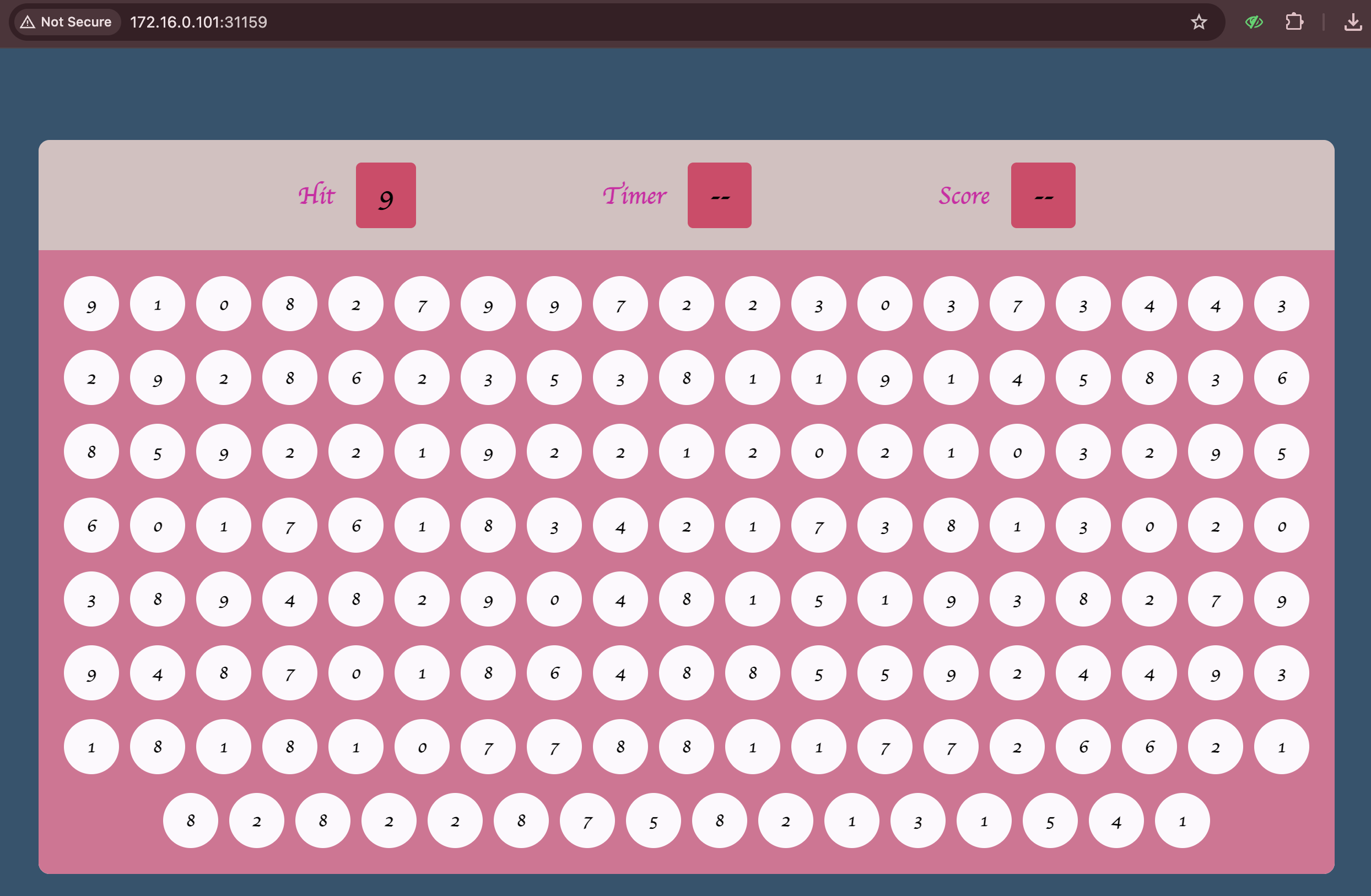
Kubernetes simply allocated a new port when recreating the service.
Overall the backup and restore workflow behaved exactly as expected. Velero successfully captured the namespace resources and restored them after deletion, and the artifacts stored in S3 were very small since they only contained Kubernetes manifests rather than application data. During the restore process, the Deployment, ReplicaSet, Pod, and Service were recreated without issues.
This run also intentionally skipped several areas that would matter in a more realistic setup. The test did not cover backing up PersistentVolumes, restoring stateful workloads, restoring into a different cluster, configuring scheduled backups, or setting retention policies. Those scenarios are usually where backup tooling becomes more interesting and complex. Testing PVC backups would probably be the next logical step, but for this proof of concept I didn’t feel like extending the scope that far.